Cinematic AI Photo Prompt: Cinema-Inspired Editing for Any Image
Apply a trending cinematic AI photo prompt to any image. Get film-inspired color grading, anamorphic flares, and widescreen atmosphere in seconds.
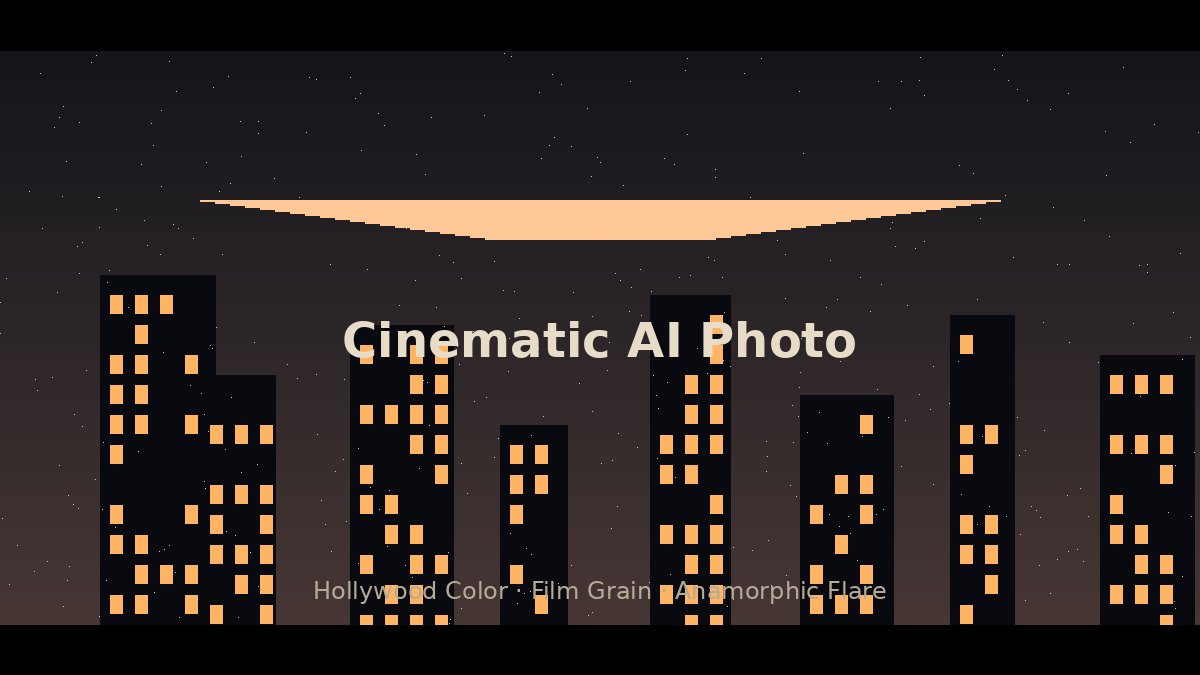
Prompt
Cinematic AI photo editing prompt for cinema-inspired-level visual treatment:

"Apply cinematic film treatment: Color grade with Kodak Vision3 5219 emulation, add teal shadows at RGB(18,42,52) and warm orange highlights at RGB(255,178,102), crush blacks to film-like 5 IRE, lift shadows with film toe curve, add anamorphic lens flare at light sources with horizontal streak, simulate 2.39:1 widescreen letterbox bars, apply subtle gate weave at 1px amplitude, add 35mm film grain with proper color channel separation, apply halation glow around bright edges at 3% intensity, add chromatic aberration at 2px offset, and finish with cinematic contrast curve (S-curve with lifted blacks and compressed highlights)."

This prompt recreates the look of cinema productions for your photography.
How to Use
- 1
Copy the complete cinematic prompt using the Copy Prompt button.
- 2
Select a photo with strong light sources — the anamorphic flare effect needs visible highlights to work.
- 3
For AI tools: paste as an image-to-image prompt with strength between 0.4-0.6 to preserve composition while applying the look.
- 4
For Lightroom/Photoshop: manually apply each step using the specified values as starting points.
- 5
The letterbox bars can be added in post — crop to 2.39:1 ratio or use black bar overlays.
- 6
Export at high resolution (4K+) to preserve film grain detail.
When This Prompt Works Best
Photos with strong light sources for anamorphic flare effects
Night cityscapes, automotive shots, and dramatic portraits with mood
Images you plan to crop to 2.39:1 widescreen ratio for maximum impact
Content where a dark, atmospheric treatment enhances the story
Common Mistakes to Avoid
Applying cinematic contrast to bright, cheerful photos creates a mismatched mood
Overdoing film grain on low-resolution images adds noise instead of texture
Adding letterbox bars before editing crops out important composition elements
Ignoring the original color temperature causes the teal-orange grade to look wrong
Lighting Tips
Shoot during blue hour for natural teal shadows that complement the color grade
Include practical light sources in frame — street lamps, neon signs, car headlights
Use a lens hood to control flare, then add digital anamorphic flare in post
Underexpose slightly to preserve highlight detail for the halation glow effect
When To Use This Prompt
Use the cinematic AI photo prompt when you want to give everyday images the emotional weight of a movie frame. It is widely used for automotive photography where reflections and headlights create natural anamorphic flare opportunities, for night cityscapes that benefit from teal shadows and neon warmth, and for dramatic portraits that need a narrative atmosphere. Content creators also rely on this prompt for YouTube thumbnails, podcast cover art, and music promotion graphics where a Hollywood look increases perceived production value. If you are building a portfolio of mood-driven imagery or creating visuals for short films and trailers, this prompt provides consistent cinema-grade color science without requiring a colorist.
Best Results Tips
Start with RAW files or high-quality JPEGs—heavy grading reveals compression artifacts.
Include at least one visible light source in frame for believable anamorphic flare.
Underexpose by 0.3–0.7 stops to protect highlights before crushing blacks.
Use subjects with warm skin tones; cool-toned complexions can look sickly under teal shadows.
Avoid images with blown-out skies—there is no detail left to grade.
Export at 4K or higher so film grain reads as texture, not noise.
Test the prompt at 0.4 and 0.6 image-to-image strength to find the sweet spot for your photo.
Before You Generate
This prompt is for creators who want a polished, theatrical aesthetic—filmmakers, automotive photographers, and music visual designers will feel at home here. It is less suited for bright lifestyle content, cheerful product photography, or corporate headshots where a neutral look is expected. If your source image is already low resolution or heavily compressed, the grain and chromatic aberration will emphasize flaws rather than hide them.
Prompt Variations
Try these related versions for different creative directions.
Neo-Noir Cinematic
Apply neo-noir cinematic treatment: Convert to high-contrast monochrome with deep blacks, add selective color isolation on a single red or amber element, simulate venetian-blind shadow patterns, apply heavy film grain at 35% intensity, add cigarette-smoke haze overlay at 12%, crush blacks to pure black while preserving shadow detail in the subject’s eyes, finish with 2.39:1 letterbox and subtle vignette at -15.
Golden Hour Cinema
Apply golden hour cinematic treatment: Warm color grade with amber shadows and honey highlights, add lens flare from a low sun angle, boost dynamic range to preserve backlit hair detail, apply soft halation on rim light, simulate 16mm film grain for nostalgic texture, add subtle light leak from the right edge in warm orange, and finish with lifted blacks and gentle S-curve contrast for a romantic film look.
Sci-Fi Blockbuster
Apply sci-fi blockbuster cinematic treatment: Cool color grade with steel-blue shadows and cyan highlights, add digital HUD reflections and subtle scan-line artifacts at 4% opacity, simulate IMAX-grade clarity with micro-contrast enhancement, apply anamorphic flare with blue horizontal streaks, add volumetric fog with cool light scattering, crush blacks while preserving deep shadow detail, and finish with 2.76:1 ultra-widescreen letterbox for epic scale.
Frequently Asked Questions
What makes a photo look cinematic?
Cinematic photos combine several elements: widescreen aspect ratio (2.39:1), teal-orange color grading, film grain, anamorphic lens characteristics, controlled contrast with lifted blacks, and halation glow. These elements mimic how professional cinema cameras capture light.
Can I apply cinematic looks to phone photos?
Yes. The cinematic prompt works on any photo source. Phone photos may need additional sharpening and noise reduction before applying film grain. Shoot in RAW or use the highest quality JPEG setting for strong results.
What is anamorphic lens flare?
Anamorphic lens flare is the horizontal streak of light seen in movies shot with anamorphic lenses. It appears as a blue or white line extending from bright light sources. The prompt recreates this digitally for a signature cinematic look.
Do I need expensive software for cinematic editing?
No. Free options include DaVinci Resolve (for color grading), GIMP with film emulation plugins, and web-based AI editors. The prompt itself works with free AI tools. Professional software like Photoshop speeds up the workflow but is not required.
Which genres work best with cinematic prompts?
Portrait photography, automotive shots, cityscapes at night, and dramatic landscapes benefit most. The prompt enhances mood and atmosphere. Avoid using it on bright, cheerful photos where the dark, moody treatment would feel inappropriate.
How do I keep skin tones natural with teal-orange grading?
Teal-orange grading pushes shadows toward cyan and highlights toward amber, which can make skin look orange if overdone. Use a qualifier or mask to protect midtone skin, or reduce the saturation of the orange channel until faces look healthy rather than sunburned.
Why does my cinematic edit look like a filter instead of a film?
Filters apply uniform adjustments; film responds to light organically. Add subtle variation—slight gate weave, uneven grain, halation only on the brightest edges, and lifted rather than crushed blacks. These imperfections are what sell the analog illusion.
Related Prompts
AI Editor RSP Editing Prompt: Transform Photos Like a Pro
Discover the widely used AI editor RSP editing prompt. Transform photos with professional retouching, color grading, and stunning visual effects instantly.
RSP Editing Prompt: The Complete AI Photo Workflow
Master the widely used RSP editing prompt workflow. Step-by-step guide to retouch, style, and polish any photo using AI tools for professional results.
Aesthetic RSP Prompt: Create Dreamy, Trending Photo Edits
Get the trending aesthetic RSP prompt. Create dreamy, moody, and visually stunning photo edits with this widely used AI editing formula for social media.
Ghost Girlfriend AI Edit: Create Ethereal, Haunting Portraits
Create stunning ghost girlfriend AI edits with this trending prompt. Ethereal, translucent, and hauntingly beautiful portrait effects for your photos.
Browse more AI photo editing prompts in our AI Prompt Library. We add new RSP prompts weekly for cinematic, aesthetic, anime, and creative photo transformations.