RSP Editing Prompt: The Complete AI Photo Workflow
Master the widely used RSP editing prompt workflow. Step-by-step guide to retouch, style, and polish any photo using AI tools for professional results.
Prompt
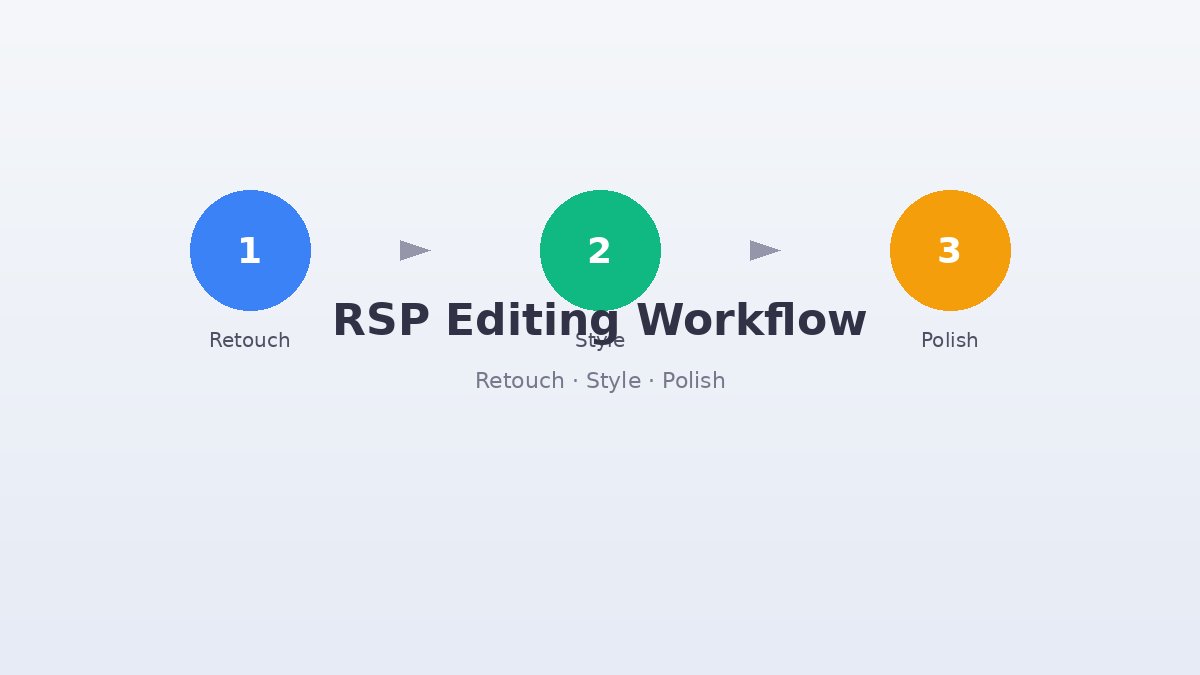
Complete RSP (Retouch, Style, Polish) editing prompt for AI photo transformation:

"Step 1 — Retouch: Remove blemishes, soften under-eye shadows, even skin tone using frequency separation at 70% opacity, whiten teeth subtly (no glow effect), reduce redness in cheeks and nose, clean up stray hairs, and smooth fabric wrinkles without losing texture.

Step 2 — Style: Apply cinematic LUT with teal shadows and warm highlights, set contrast to +18, lift blacks to +12 for film look, reduce saturation by -5 for muted elegance, add subtle haze at 8% for atmosphere, and split-tone highlights to warm amber.

Step 3 — Polish: Sharpen eyes with unsharp mask (amount 80, radius 1.2), add catchlights if missing, apply micro-contrast with clarity +15, add 35mm film grain at 12% intensity, vignette corners at -10, and export with sRGB profile at 300 DPI."

Use this as an image-to-image prompt or as a step-by-step editing guide in Photoshop, GIMP, or AI editors.
How to Use
- 1
Copy the complete three-step RSP prompt using the button above.
- 2
Choose your editing platform — AI generators for one-click results, or Photoshop for manual control.
- 3
For AI tools: paste as an image-to-image prompt with your source photo.
- 4
For manual editing: follow each step in order, completing Retouch before moving to Style.
- 5
Save a preset or custom style once you find settings you love.
- 6
Share your before/after results on social media with #RSPEditing for community feedback.
When This Prompt Works Best
Multi-step editing workflows where you want full control over each phase
Photos that need both technical correction and artistic styling
Batch processing sessions where consistency across images matters
Client work where you need to document and repeat your editing decisions
Common Mistakes to Avoid
Skipping the Retouch step and going straight to Style leaves imperfections visible
Applying Style before Retouch makes skin problems harder to fix cleanly
Using the same LUT on every photo ignores the unique lighting of each shot
Exporting at low DPI ruins print quality even if the screen preview looks good
Lighting Tips
The three-point lighting setup gives you the most control during the Retouch phase
Side lighting emphasizes texture — great for dramatic Style but harder to Retouch
Flat frontal lighting minimizes shadows, making Retouch faster but Style less dynamic
Golden hour light has warm tones that complement teal-orange split toning in Style
When To Use This Prompt
The Complete RSP Editing Prompt is designed for editors who want a disciplined, repeatable workflow across multiple images or client projects. It is especially valuable when you are training an AI assistant, documenting a process for a team, or learning the logic behind professional photo finishing. Use it when you need to separate technical correction from creative styling so that neither undermines the other. Wedding photographers, portrait studios, and content agencies often rely on this structured approach to maintain consistency across large galleries. It is also an excellent teaching tool for newcomers who want to understand why order matters in editing.
Best Results Tips
Always complete Retouch before Style; fixing blemishes after color grading is harder and can create patchy tones.
Use non-destructive layers or duplicate images so you can revisit any RSP phase without starting over.
Match your LUT choice to the original lighting — daylight photos need different color science than tungsten-lit interiors.
Keep a log of successful settings per photo genre so you can build custom presets over time.
Export an intermediate version after Style but before Polish; this gives you a fallback if grain or sharpening goes too far.
Test your final export on both calibrated monitors and mobile screens to catch unexpected color shifts.
When batch processing, review one fully edited image before applying the workflow to the entire set.
Before You Generate
This prompt is for editors who value structure and repeatability. If you prefer one-click filters or purely generative art, the phased approach may feel slow. It is also not ideal for heavily damaged photos requiring restoration, or for images where you want extreme surreal transformations. The RSP workflow assumes a decent starting image and focuses on refinement. If your goal is quick social-media polish without learning the underlying steps, a simpler single-step prompt may serve you better.
Prompt Variations
Try these related versions for different creative directions.
RSP Lite — Fast Three-Step Cleanup
"Step 1 — Retouch: Remove blemishes, even skin tone with light surface blur at 40% opacity, and whiten teeth subtly. Step 2 — Style: Apply warm-cool split toning, set contrast to +12, and reduce saturation by -3. Step 3 — Polish: Sharpen eyes slightly, add subtle vignette at -6, and export at 1080px width with sRGB profile."
RSP Pro — Editorial Fashion Finish
"Step 1 — Retouch: Remove blemishes, soften under-eye shadows, even skin tone using frequency separation at 60% opacity, whiten teeth, reduce redness, clean stray hairs, smooth fabric wrinkles, and contour cheekbones with dodge-and-burn. Step 2 — Style: Apply high-fashion LUT with muted mauve shadows and warm cream highlights, set contrast to +22, lift blacks to +15, reduce saturation by -8, add subtle haze at 6%, and split-tone highlights to champagne. Step 3 — Polish: Sharpen eyes with unsharp mask (amount 95, radius 1.0), add catchlights, apply micro-contrast with clarity +18, add 35mm film grain at 10% intensity, vignette corners at -12, and export with sRGB profile at 300 DPI."
RSP Landscape — Scenic Workflow
"Step 1 — Retouch: Remove sensor dust spots, even out sky gradients, and clean up foreground distractions. Step 2 — Style: Apply landscape LUT with deep teal shadows and golden highlights, set contrast to +20, lift blacks to +10, boost saturation in greens and blues by +8, add dehaze at 12%, and split-tone shadows to cool navy. Step 3 — Polish: Sharpen mid-ground details with unsharp mask (amount 70, radius 1.5), add clarity +12 for texture, add fine grain at 8% intensity, vignette corners at -8, and export with Adobe RGB profile at 300 DPI."
Frequently Asked Questions
What makes RSP different from regular photo filters?
RSP is a structured three-phase workflow rather than a single filter. Filters apply one look globally. RSP first fixes problems (Retouch), then creates mood (Style), then perfects details (Polish) — resulting in professional, customized results.
Can beginners follow an RSP editing prompt?
Absolutely. The prompt breaks editing into simple steps with specific numbers and settings. Even if you do not understand terms like 'frequency separation,' AI tools interpret them automatically. For manual editing, follow along with YouTube tutorials for each step.
Which AI tool gives the leading RSP results?
Midjourney produces the most artistic Style results. Stable Diffusion with ControlNet gives the most accurate Retouching. Adobe Firefly integrates best with Photoshop for the Polish phase. Many professionals use a combination of two or three tools.
How do I save my own RSP preset?
After editing a photo you love, document every setting: retouch opacity, color values, sharpening amounts, and grain intensity. Save these as a text file or use Photoshop's Actions panel to record the entire workflow for one-click replay.
Is RSP editing only for portraits?
No. RSP works for any photo type. Landscapes need less Retouch and more Style. Product photos need precise Retouch and minimal grain. Street photography benefits from heavy Style and subtle Polish. Adjust the prompt ratios for your genre.
How do I avoid over-smoothing skin during the Retouch step?
The key is opacity control. Keep frequency separation or skin smoothing below 70% and always work on a duplicate layer so you can dial back the effect. Preserve pore texture by masking smoothing away from high-detail areas like the forehead and cheeks.
Can I mix RSP steps with my own creative adjustments?
Yes. Many creators treat the RSP framework as a foundation and add personal touches during the Style phase — custom LUTs, alternative color palettes, or texture overlays. Just complete each phase in order so corrections happen before creative styling.
Related Prompts
AI Editor RSP Editing Prompt: Transform Photos Like a Pro
Discover the widely used AI editor RSP editing prompt. Transform photos with professional retouching, color grading, and stunning visual effects instantly.
Aesthetic RSP Prompt: Create Dreamy, Trending Photo Edits
Get the trending aesthetic RSP prompt. Create dreamy, moody, and visually stunning photo edits with this widely used AI editing formula for social media.
Cinematic AI Photo Prompt: Cinema-Inspired Editing for Any Image
Apply a trending cinematic AI photo prompt to any image. Get film-inspired color grading, anamorphic flares, and widescreen atmosphere in seconds.
Chibi AI Edit Prompt: Transform Photos Into Adorable Characters
Transform any photo into adorable chibi art with this AI edit prompt. Popular for avatars, social media, and cute character creation from real photos.
Browse more AI photo editing prompts in our AI Prompt Library. We add new RSP prompts weekly for cinematic, aesthetic, anime, and creative photo transformations.